How Leader App Collects SMS Consent
This page documents every way a person can opt in to text messages from Leader App, with screenshots of each step. It exists so that reviewers, ministry partners, and message recipients can see exactly how consent is obtained, stored, and withdrawn.
Leader App is a youth-ministry operations platform. Local ministry areas (church youth groups, Young Life chapters, and similar organizations) use it to run club nights, coordinate rides, manage camp trips, and stay in touch with their leaders, volunteers, and families.
Text messages are never sent to anyone who has not affirmatively opted in. Consent is optional, is never a condition of creating an account or using any part of the service, and can be withdrawn at any time.
Click any screenshot below to open it at full resolution, so the consent wording is readable exactly as it appears to the user.
Summary of consent paths
| Path | Where it happens | Default state |
|---|---|---|
| Account signup | Invite acceptance screen | Unchecked |
| Profile settings | Profile, Notifications tab | Off |
In every case the consent control is unchecked by default, is clearly labeled as optional, and carries the full disclosure text next to it. Nothing on the form is pre-selected, and no part of the signup is blocked if the person declines.
The exact disclosure shown at every opt-in point
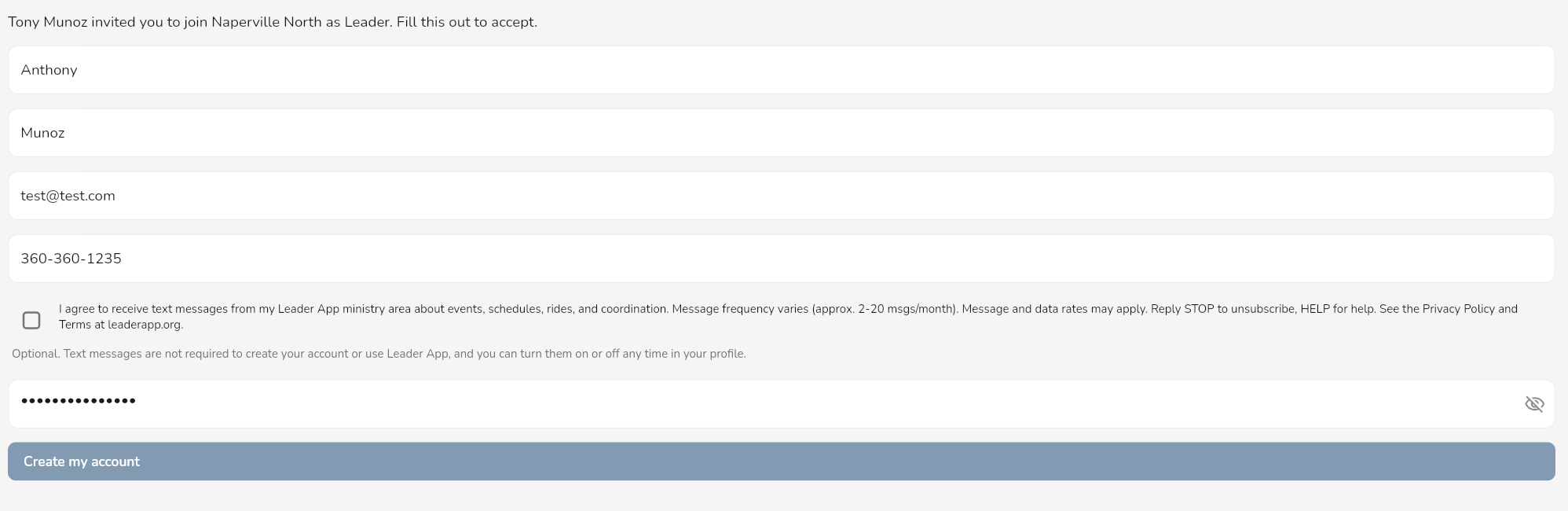
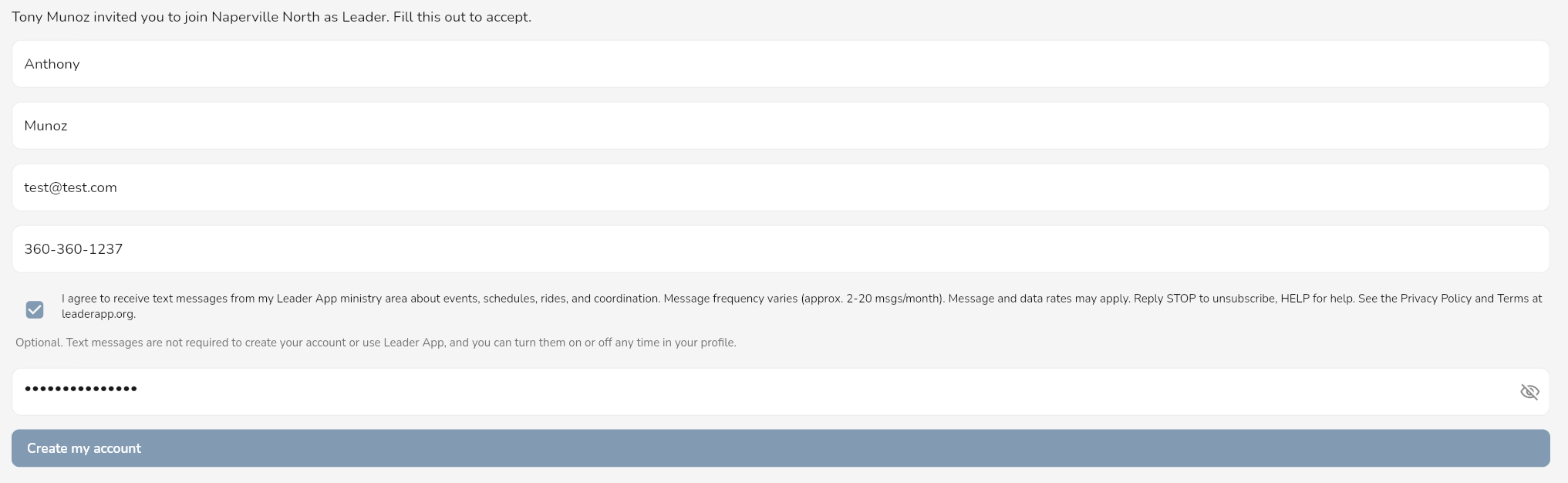
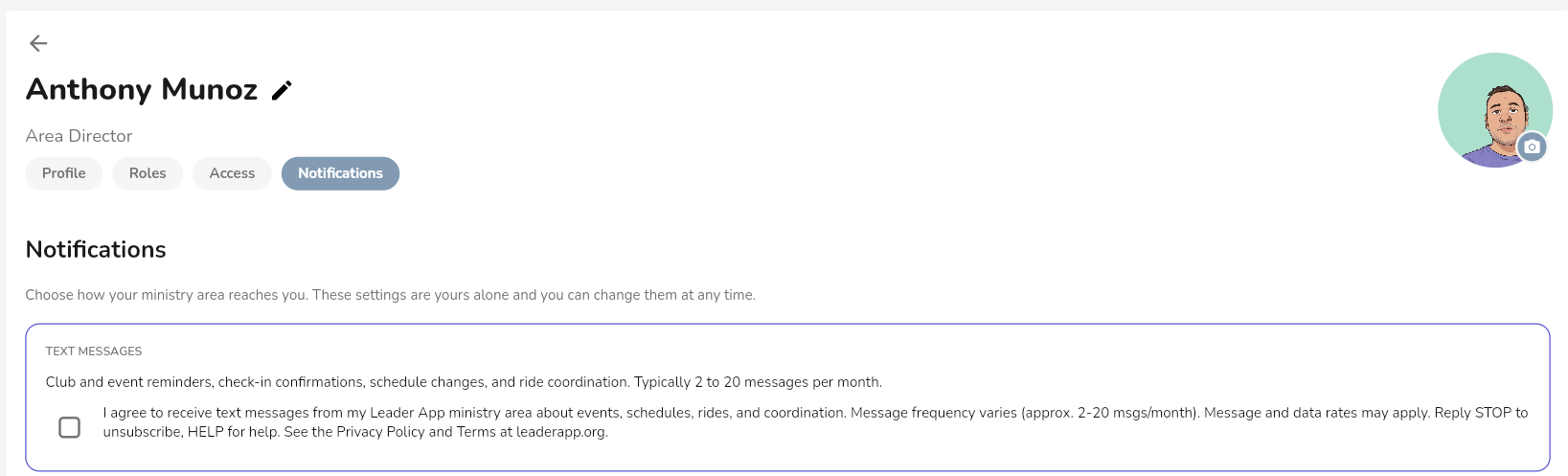
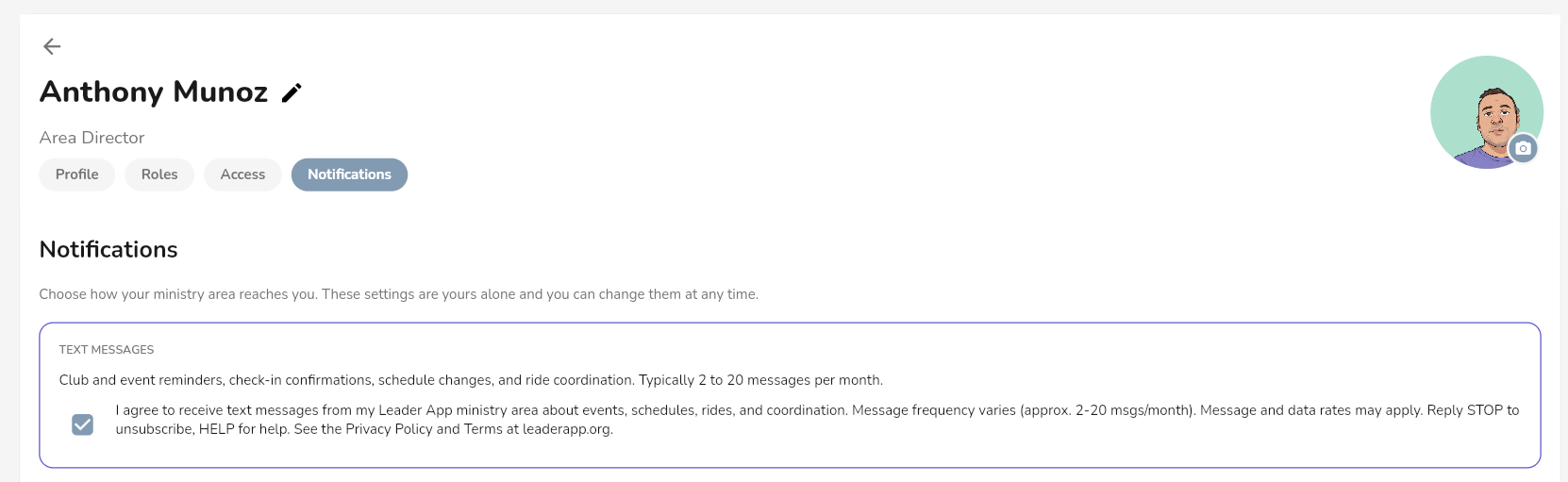
I agree to receive text messages from my Leader App ministry area about events, schedules, rides, and coordination. Message frequency varies (approx. 2-20 msgs/month). Message and data rates may apply. Reply STOP to unsubscribe, HELP for help. See the Privacy Policy and Terms at leaderapp.org.
This wording is identical at both opt-in points, on the signup form and in profile settings. When someone opts in, this exact text is stored alongside their record together with the timestamp, so there is always a durable record of what they agreed to.
Step 1 — A leader can only text an invite if the person asked for it
Before any invitation can be sent by text, the ministry leader must confirm that the recipient personally asked to be texted. This checkbox is unchecked by default.
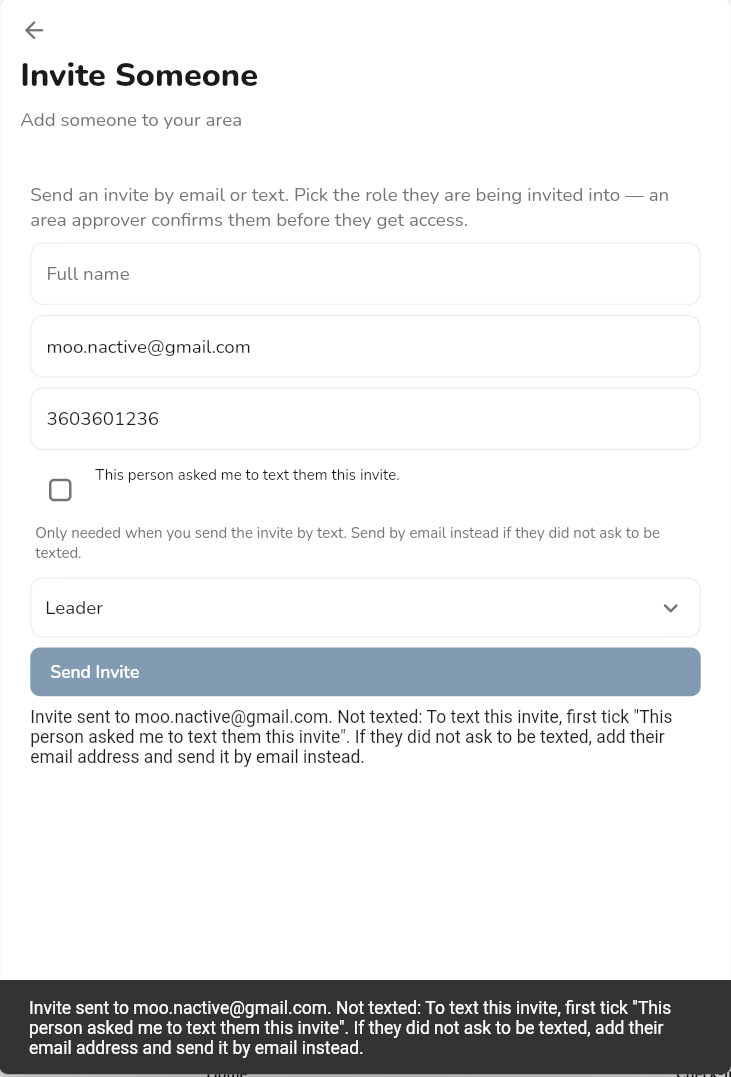
If the leader does not check that box, the system refuses to send the text.
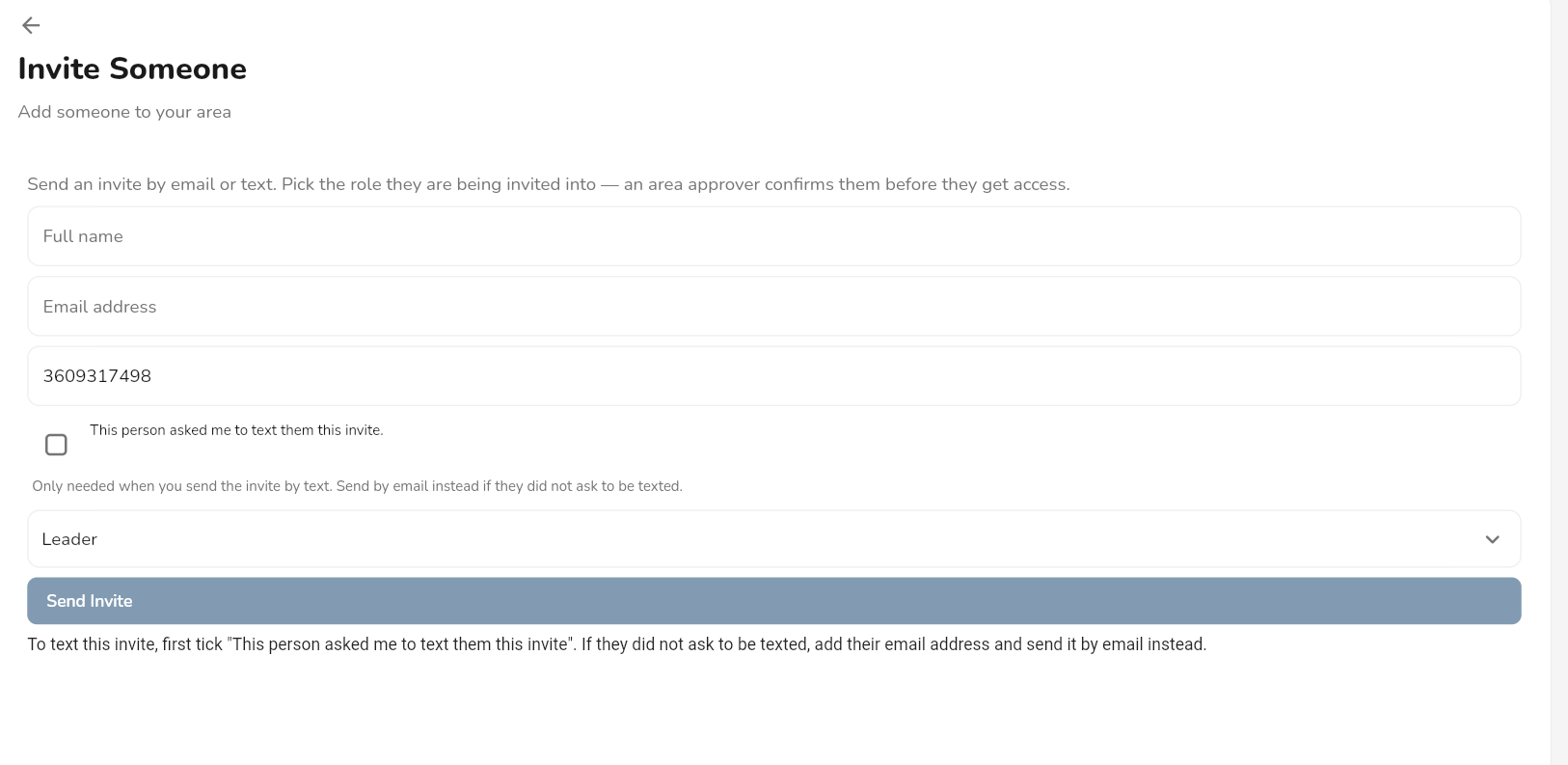
When an email address is also on file, the invitation is delivered by email instead, and the leader is told plainly that the text was not sent.
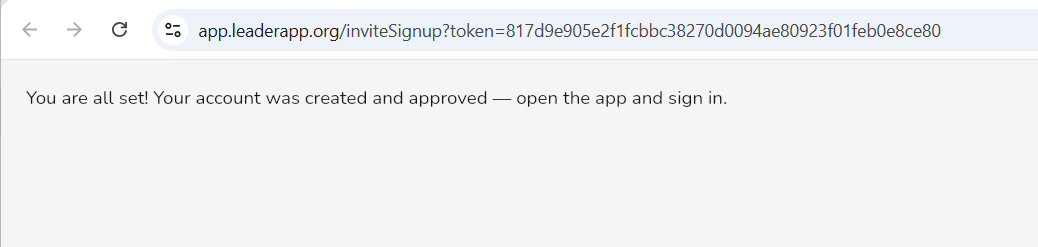
Step 2 — Consent is collected at signup, unchecked by default
On the account creation screen the SMS consent checkbox appears with the full disclosure beside it. It is unchecked when the page loads. Directly beneath it the form states: “Optional. Text messages are not required to create your account or use Leader App, and you can turn them on or off any time in your profile.”
Step 3 — Consent can be turned on or off at any time
Every account has a Notifications tab in the user profile with the same disclosure and the same checkbox. Turning it off stops all text messages immediately and records the withdrawal.
Sample messages
Leader App: Club is tonight at 7:30pm at Naperville North. Ride pickup leaves the church at 7:00pm. Reply STOP to opt out.
Leader App: Camp deposit for Sharptop is due Friday. Questions, reply here or talk to your leader. Reply STOP to opt out.
Leader App: You are checked in for tonight. See you there. Reply STOP to opt out.
Messages relate only to the ministry area the person belongs to. Leader App does not send marketing, promotional, or third-party content, and never sells, rents, or shares phone numbers.
Opting out
- Reply STOP to any message to stop all texts immediately.
- Reply HELP for assistance, or email support@leaderapp.org.
- Turn off text messages in the app under Profile, then Notifications.
Message frequency varies, typically 2 to 20 messages per month. Message and data rates may apply. Carriers are not liable for delayed or undelivered messages.
Policies
Privacy Policy · Terms of Service
Our Privacy Policy states that text-message consent and phone numbers are never shared with third parties or sold, and are used only to deliver the ministry communications described above.